
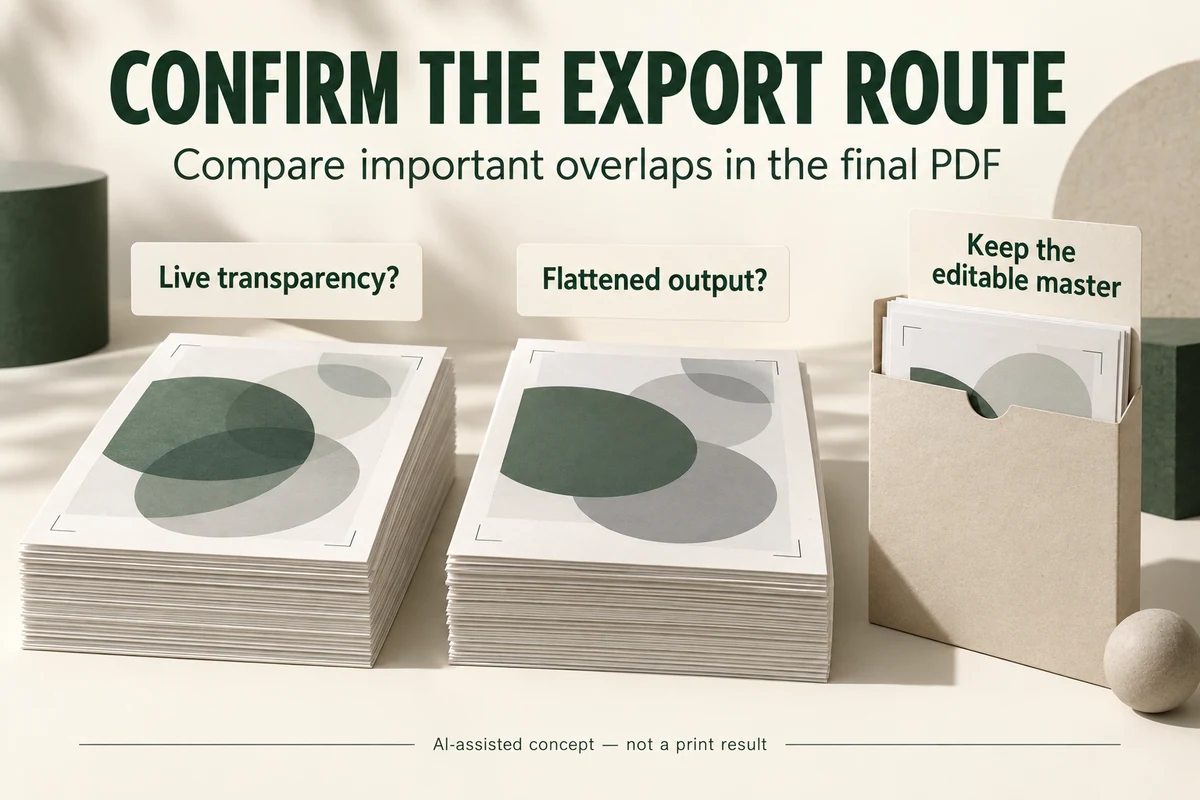
Ask the printer whether its delivery workflow accepts live transparency or requires a flattened output. Keep an editable master, export using the agreed settings and inspect the affected artwork in the final PDF. A clean screen preview alone doesn’t resolve how shadows, overlapping objects and spot channels will be processed.
A soft shadow may be intentional in a photograph-based sleeve design. An overlapping finish mask may serve a different production purpose. Before changing both, identify which objects use transparency and what each is supposed to do.
Confirm the output route before flattening
Adobe explains that flattening divides transparent artwork into opaque vector and raster areas. InDesign flattens in certain older output routes, including PDF 1.3; newer compatible formats can retain live transparency. Adobe also advises keeping an unflattened master. See its transparency flattening guidance.
Use the printer’s delivery requirements to choose the route. A general instruction to "flatten everything" skips the question of which output the printer actually accepts. A decision to retain live transparency likewise needs confirmation from the receiving workflow.
Ask who will prepare the production candidate. If the printer will process the editable artwork, clarify what the designer should send and what output the buyer will review. Keep that role clear before anyone replaces the master with a delivery version.
Select the areas that deserve close inspection
Identify overlaps where transparency meets important copy, logos, spot colors or finishing masks. Include photographs with soft edges and gradients that cross other objects. This gives the designer a focused comparison rather than a request to approve every screen pixel.
For each area, state the intended appearance in plain terms. "The brand line remains sharp over the photograph" is a usable target. "Keep transparency correct" provides little help when the designer is comparing two exports.
Use an enlarged view to locate an issue, then inspect the same region at the intended print size. Ask the printer which further proof can resolve uncertainty about its processing. Don’t infer a physical defect from a screen artifact without that investigation.
Use a comparison that isolates the change
The following review sequence keeps the comparison manageable:
- Retain the editable master and identify the printer’s accepted output route.
- Mark important transparent overlaps in the native design.
- Export a delivery candidate using the agreed settings.
- Compare the marked areas with the native appearance and approved design intent.
- Have the printer assess unresolved output differences and return a named corrected candidate where needed.
If two exports are prepared for investigation, change only the setting being assessed where practical. Label them as comparison candidates rather than sending both as equally approved production files. The receiving printer needs one clear final delivery.
Compare three different overlap types
Use this inspection matrix for an illustrative sleeve with a photograph, shadow and spot-color mark. Keep the printer-required output route beside the comparison. The checks identify questions; they don’t diagnose a physical defect from a screen image.
| Marked area | Compare in native artwork and final PDF | Question if it changes |
|---|---|---|
| Vector care text crossing a transparent area | Letter shapes, visible edges and text position at final size | Did this export alter the text or how it is represented? |
| Raster shadow or gradient beside a photograph | Edge continuity, tonal transitions and final-size appearance | Which export setting or affected object needs the printer’s assessment? |
| Transparent overlap with a spot-color brand mark | Appearance and whether the intended spot channel remains | Does the exported channel still match the printer’s agreed ink plan? |
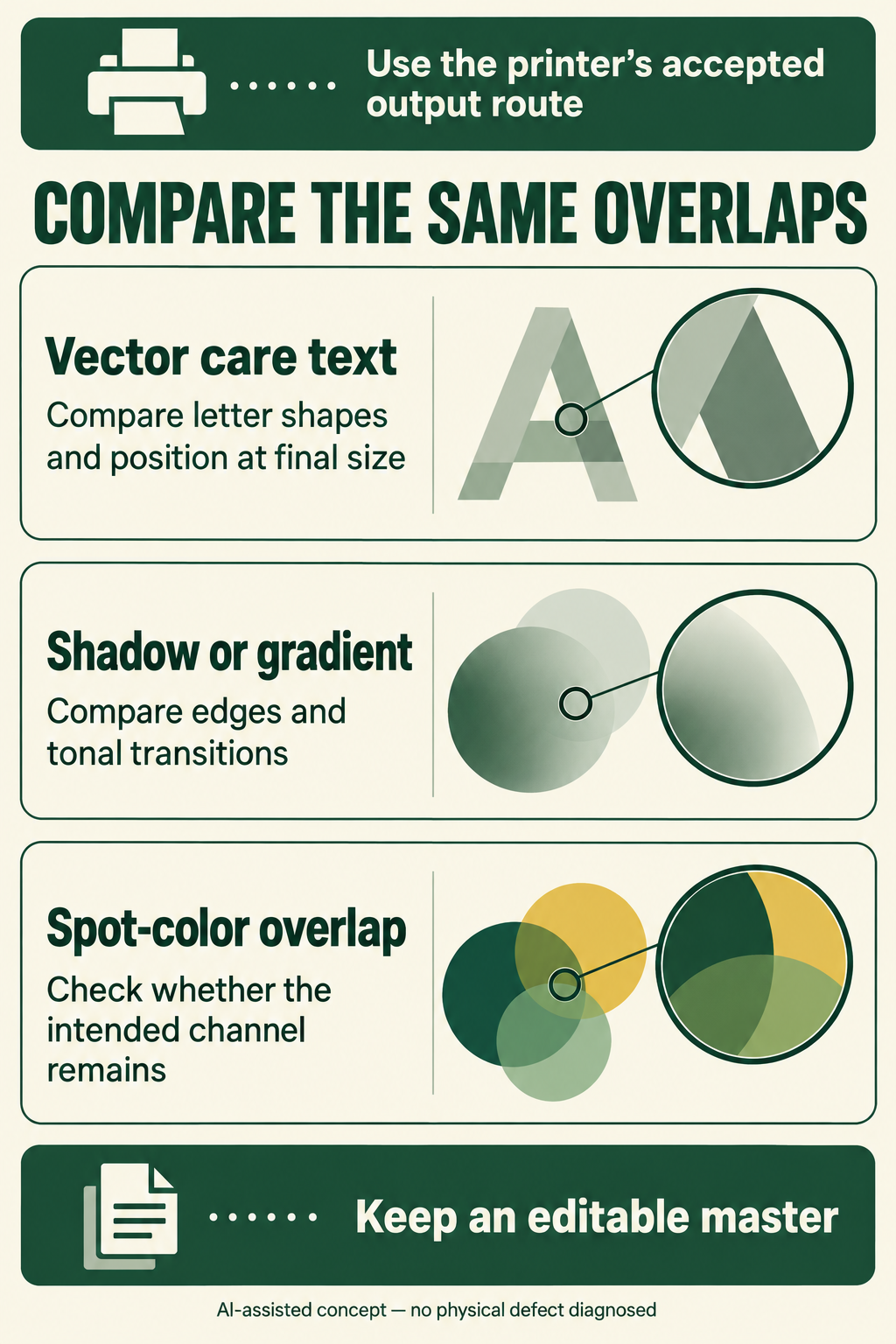
Change one relevant setting where practical, then repeat the same marked-area comparison. If the correction alters a spot channel or letter shape, show that property to the printer as well as the buyer. An attractive composite can conceal a changed output construction.
Check channels and copy after a correction
Read any copy affected by a correction. If text moves or changes, the buyer needs to review the words and layout again, alongside the printer’s output assessment.
Use Packrivo’s print-file manifest to distinguish the editable master from the production candidate. The artwork handoff checklist keeps the wider copy, structure and finish questions visible.
Finish with a printer-accepted output route and an inspected delivery file. Keep the editable master available so a later correction can start from the design rather than from an already processed output.
Adobe guidance checked 8 October 2026. Printer capabilities and software settings remain specific to the selected project; no physical print performance is established by this article.
Changing the route and color conversion together confounds the comparison
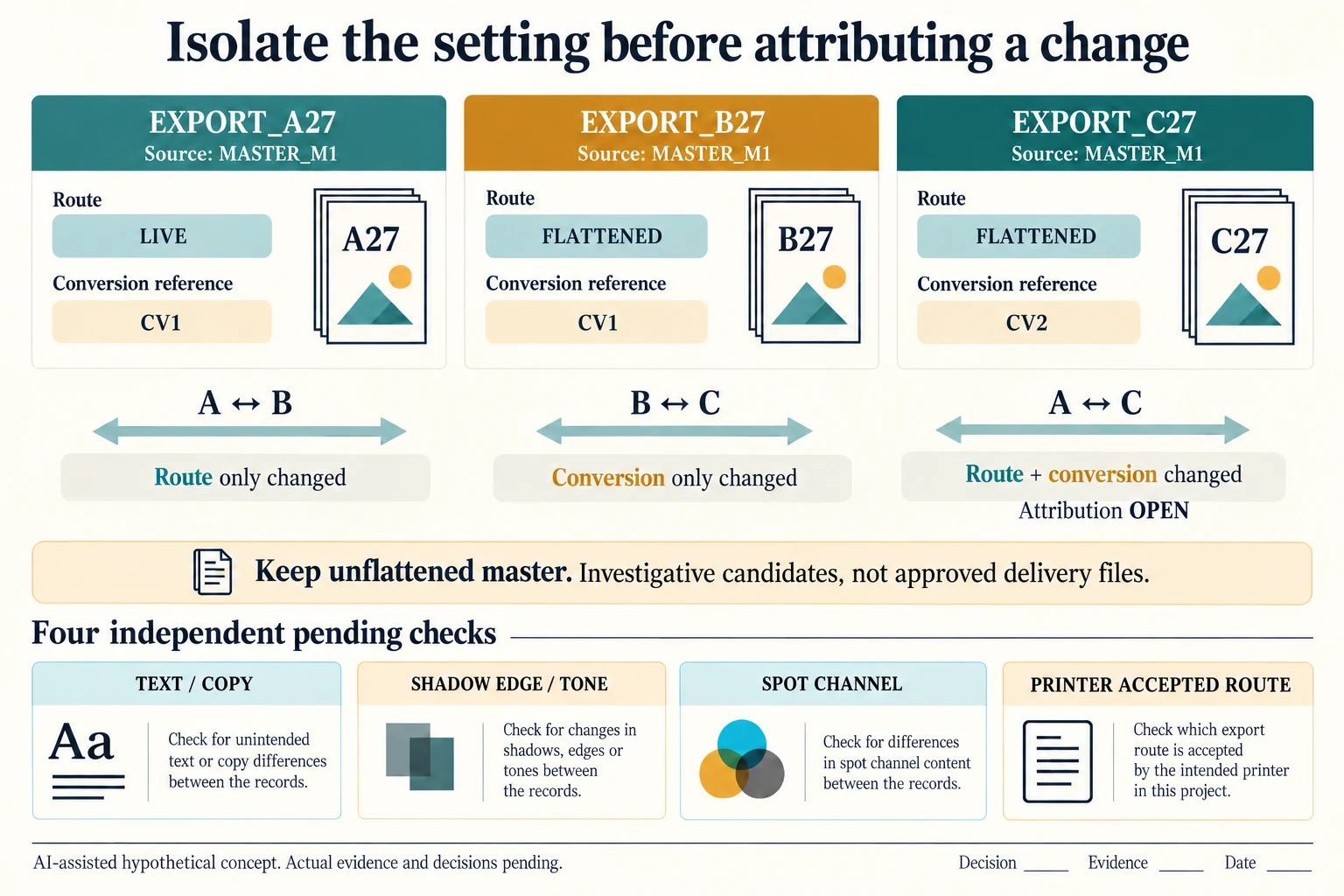
Keep MASTER_M1 as the shared unflattened source for three invented export references. EXPORT_A27 assumes a live-transparency route with conversion reference CV1; EXPORT_B27 assumes a flattened route with CV1; EXPORT_C27 assumes a flattened route with CV2. CV1 and CV2 are settings-reference tokens, not ICC profiles, recipes or selected printer instructions. No export has actually been processed.
Scroll horizontally if columns extend beyond the view.
| Hypothetical configuration | Named object | Relationship | Input or next scope |
|---|---|---|---|
| EXPORT_A27 | EXPORT_A27 | assumed master | MASTER_M1 |
| EXPORT_A27 | EXPORT_A27 | assumed route | LIVE |
| EXPORT_A27 | EXPORT_A27 | assumed color conversion reference | CV1 |
| EXPORT_B27 | EXPORT_B27 | assumed master | MASTER_M1 |
| EXPORT_B27 | EXPORT_B27 | assumed route | FLATTENED |
| EXPORT_B27 | EXPORT_B27 | assumed color conversion reference | CV1 |
| EXPORT_C27 | EXPORT_C27 | assumed master | MASTER_M1 |
| EXPORT_C27 | EXPORT_C27 | assumed route | FLATTENED |
| EXPORT_C27 | EXPORT_C27 | assumed color conversion reference | CV2 |
| COMPARISON27 | AB | first candidate | EXPORT_A27 |
| COMPARISON27 | AB | second candidate | EXPORT_B27 |
| COMPARISON27 | AB | has comparison scope | ROUTE_ONLY_CHANGED |
| COMPARISON27 | AC | first candidate | EXPORT_A27 |
| COMPARISON27 | AC | second candidate | EXPORT_C27 |
| COMPARISON27 | AC | has comparison scope | ROUTE_AND_CONVERSION_CHANGED |
| COMPARISON27 | BC | first candidate | EXPORT_B27 |
| COMPARISON27 | BC | second candidate | EXPORT_C27 |
| COMPARISON27 | BC | has comparison scope | CONVERSION_ONLY_CHANGED |
The A/B comparison changes only the named route, while B/C changes only the conversion reference. A/C changes both. If an appearance difference were later found in A/C, those records alone could not assign it to flattening. Keep other relevant settings and the same marked areas controlled or explicitly recorded before interpreting a comparison. One changed field on this worksheet is not evidence that every other actual export property matched.
Each candidate independently requests text-shape and copy comparison, shadow-edge and tone review, spot-channel inspection and confirmation of the receiving printer’s accepted route. A shadow question cannot stand in for the spot-color question. An enlarged locator should accompany the final-size review, and a screen artifact remains an investigation rather than proof of a physical print defect.
Adobe’s current flattening guidance describes older output routes such as PDF 1.3 and retaining an unflattened master. That documented behavior does not choose the project’s delivery format or establish a printer’s capability. Preserve comparison candidates as investigative references, then identify one actual final delivery under the selected route. Reopen affected words, layout and channels after a correction without overwriting the editable master.
Download the transparency export comparison changed settings record (.csv). It includes the original table fields and scenarios alongside the added relationships. HYPOTHETICAL rows are editorial examples or required review scopes, not actual records. Actual quantity, configuration, component and file identities, materials, process, specification, copy, method, condition, observation, owner, decision, evidence and dates are blank. ACTUAL_BLANK is a separate empty starting row; enter permitted project evidence before using an actual record. A blank means unknown.
Use the A Print File Manifest Keeps Fonts, Links and Output Ownership Visible for its separate question. Use the Packaging Artwork Handoff Checklist for Print Approval for its separate question. Use the Multilingual Packaging Proofs Need Three Separate Checks for its separate question.
Sources apply to their named material, process or guidance. Worked configurations and dimensions are teaching examples; they do not establish production tolerances, machine settings or test results. Review the specified material, drawing and formed sample.
Discuss this packaging specification with Packrivo. We coordinate independent suppliers. MOQ: 500 pieces per product/design; illustrative quantities are not production offers. Confirm materials, samples, price and timing for your project.