
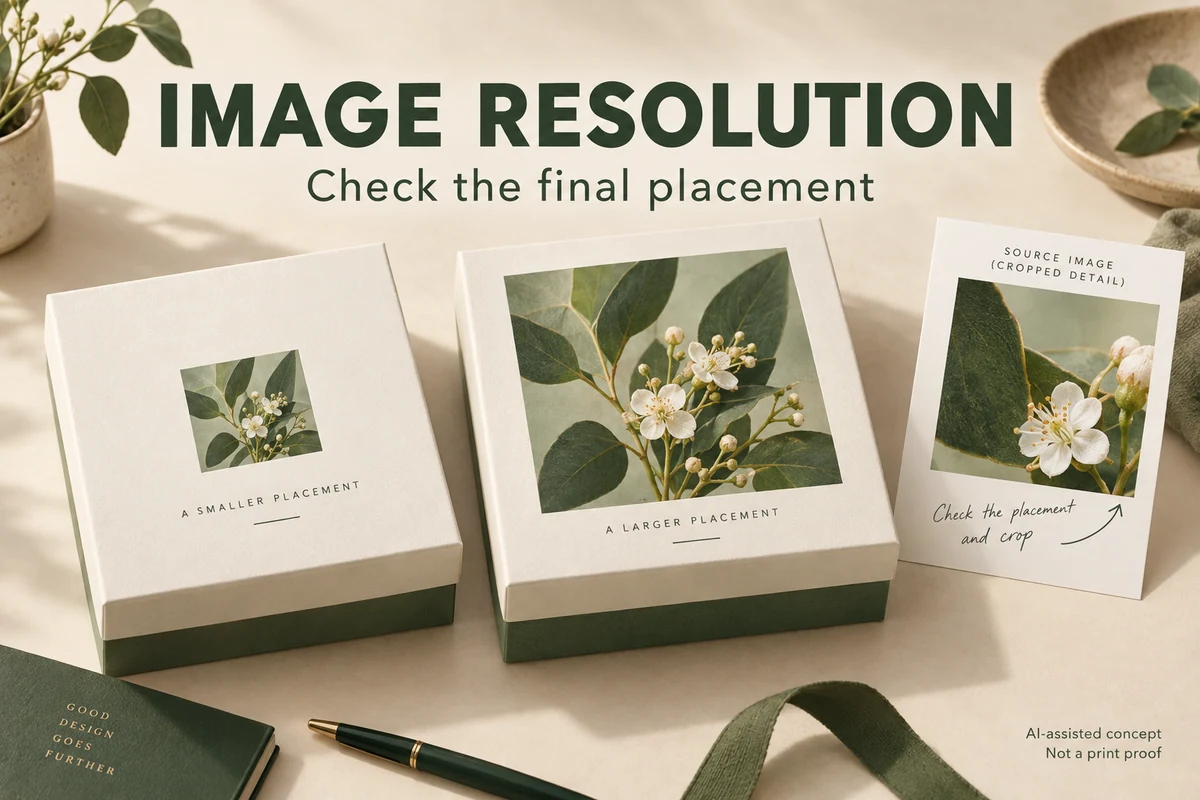
Check packaging image resolution at the size the image will occupy in the finished artwork. Divide its pixel width by its printed width in inches to find pixels per inch, and check height the same way. Compare the result with the printer’s requirement. Changing a resolution label alone doesn’t create missing detail.
A photograph can look crisp in a small website card and struggle when it fills a gift-box lid. The useful starting point is the original asset and its final placement. You can often resolve the problem by retrieving a larger original, changing the crop or reducing the printed area before altering the image itself.
Calculate resolution from the placed image
Adobe explains the relationship between pixel dimensions, physical dimensions and resolution. Without resampling, enlarging the physical print size spreads the same pixels over a larger area. Resampling changes the pixel count, but an enlarged file doesn’t recover detail absent from the original. See Adobe’s image size and resampling guidance.
Use the remaining pixels and the physical width they actually occupy. A crop at unchanged image scale doesn’t reduce resolution: half the pixels occupying half the printed width retain the same ppi. Resolution decreases if that cropped section is enlarged to fill the original width. Ask the designer for the placed image’s effective resolution where available.
Here is an illustrative calculation, not a printing specification. An image section containing 1,200 pixels across a four-inch placement has 300 ppi. Spread those same pixels across eight inches and the result is 150 ppi. Both calculations describe the file; neither decides whether a particular printer will accept it.
| Remaining image width | Printed width | Calculated resolution |
|---|---|---|
| 1,200 pixels | 4 inches | 300 ppi |
| 1,200 pixels | 8 inches | 150 ppi |
| 600 pixels, cropped then enlarged to fill the original width | 4 inches | 150 ppi |
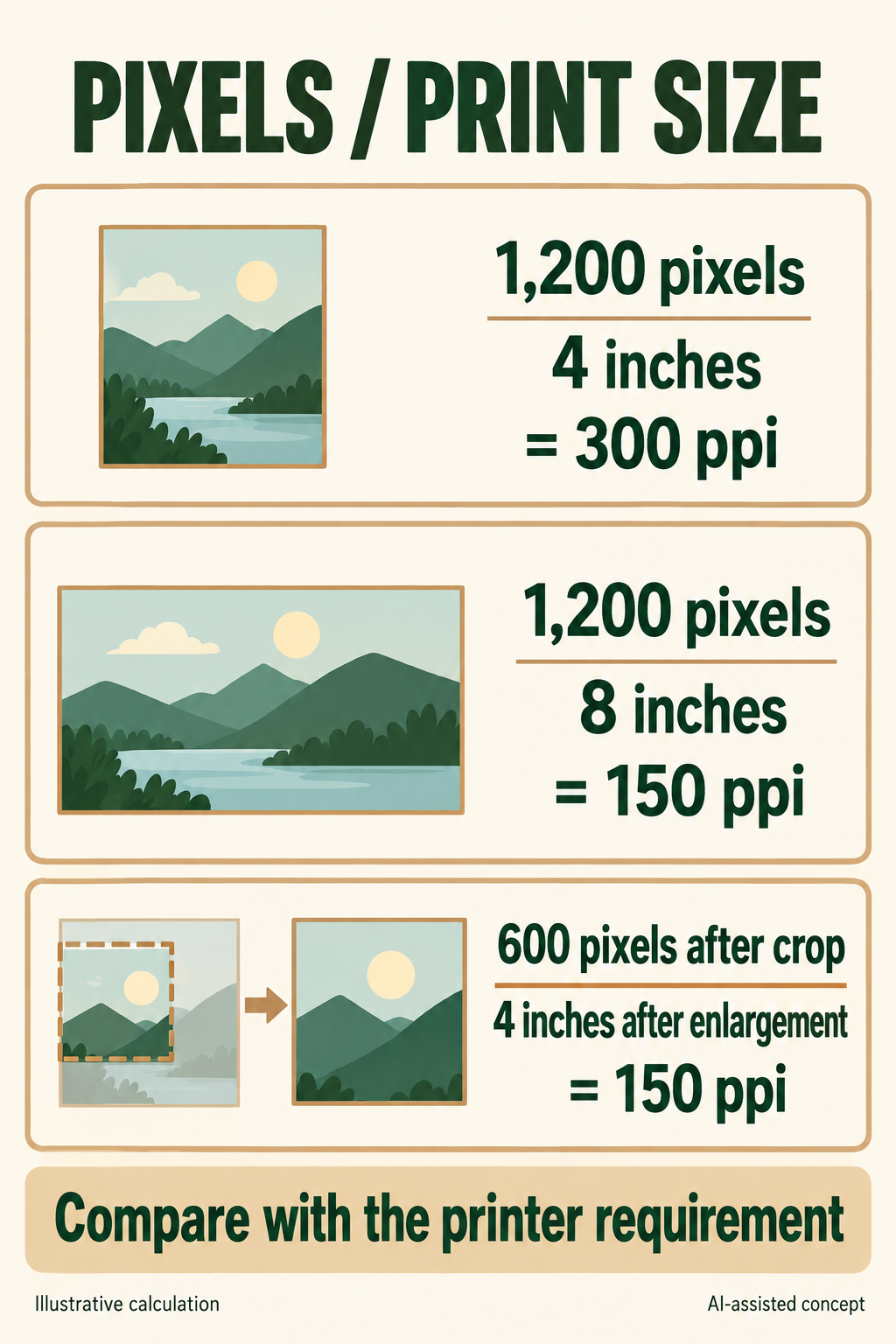
The last row assumes an enlargement after cropping. If those 600 pixels instead occupied two inches, the result would remain 300 ppi. Compare both the remaining pixel count and its actual placement size.
Ask for a requirement that matches the artwork
Send the printer a final-size crop and explain its role. A photographic background, small raster logo and image containing fine lettering deserve different attention. Ask which parts they need to inspect and which output settings they expect. Avoid turning a familiar number into a universal rule for every box, label and printing method.
Keep the question specific: "This photograph fills the lid at the attached dimensions. Is its effective resolution acceptable for your proposed process?" If the printer requests a replacement, ask whether the concern is pixel count, visible compression, sharpening or something else. That answer tells the designer what to change.
Choose a repair that preserves the design
Look for the original photograph before enlarging a downloaded preview. Check whether the photographer or designer has a larger authorized asset, then repeat the calculation using the intended crop.
Reducing the image’s physical area is another option. A smaller photograph with surrounding typography may meet the visual purpose without forcing an enlargement. Changing the crop can help when the important subject sits within a higher-detail area. Review that change for composition, rather than treating it as a purely technical fix.
If an enlargement is proposed, compare the revised image with the original at the intended print size. Pay attention to jewelry edges, fabric texture and any lettering inside the photograph. Keep deliberate retouching visible to the buyer. A higher pixel count is an output property, not evidence that product details remain accurate.
Inspect the exported file as well as the source
The image that reaches the printer is the one in the delivery file. Adobe’s PDF export options include image compression and downsampling controls. Export settings therefore belong in the review, alongside the source asset.
Ask the designer to compare an important crop in the final PDF with the native layout. Inspect at the intended output size and use an enlarged view to locate problems. A final-size physical proof can answer questions that the screen leaves open, subject to the printer’s agreed proof scope.
Use this short sequence before sending a production candidate:
- Identify the original asset and confirm permission to use it.
- Record the final crop and physical placement size.
- Calculate or inspect effective resolution and compare it with the selected printer’s requirement.
- Review any replacement or enlargement for visible changes.
- Inspect the exported PDF and request the appropriate proof for unresolved image-quality questions.
Send the image question with the artwork
Packrivo’s print-file handoff manifest helps identify the source asset and delivery file. Add the final crop and resolution question to that handoff. The printer can then assess a particular image in its intended placement, while the buyer can judge whether the proposed repair still fits the design.
Technical references checked 8 October 2026. The calculations above are illustrative; acceptance requirements remain specific to the selected printer and project.
Check both image axes and the crop’s physical proportions
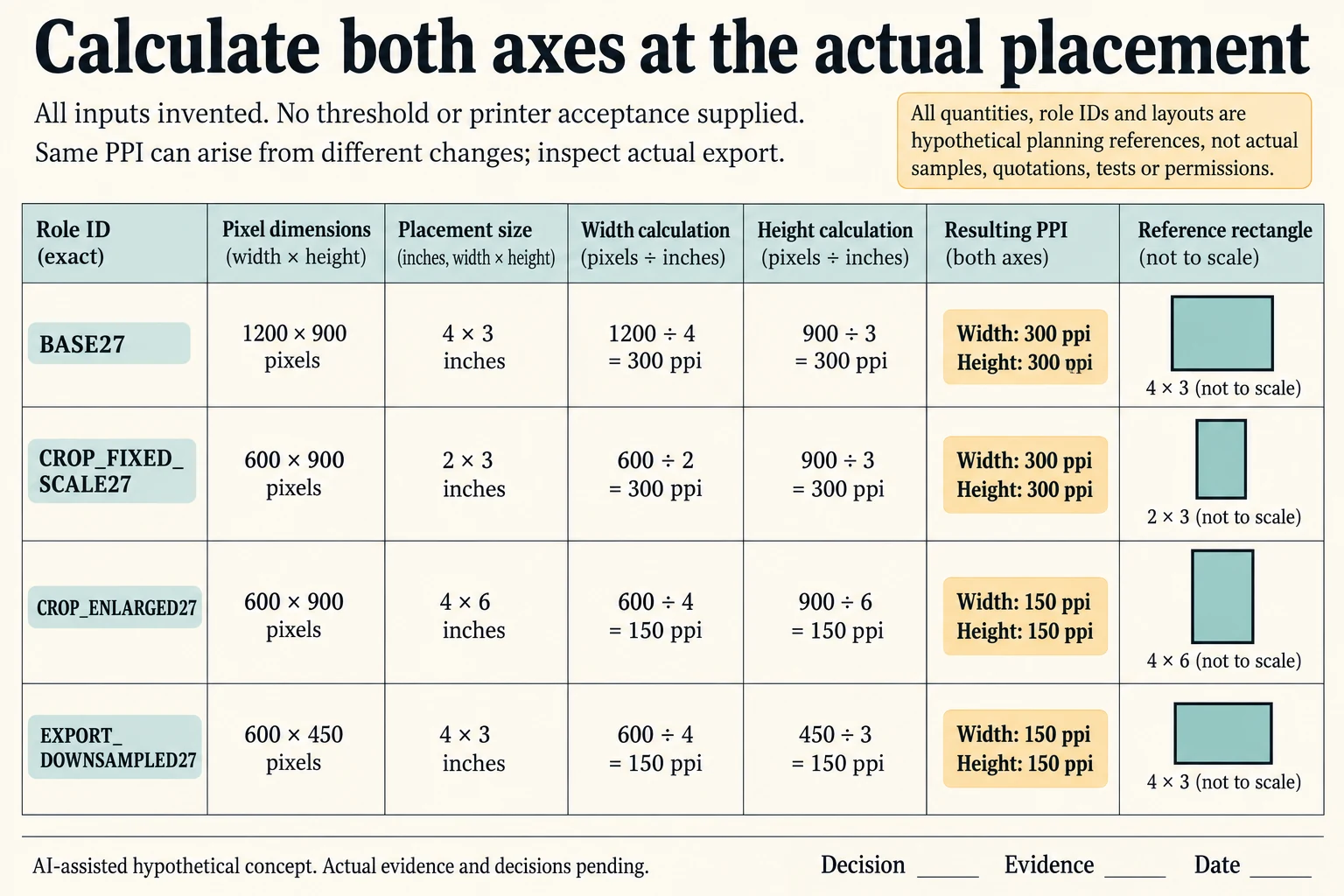
Use a separate two-axis arithmetic example. BASE27 has 1,200×900 pixels placed at 4×3 inches: width and height both calculate to 300 pixels per inch. CROP_FIXED_SCALE27 retains a 600×900 section at 2×3 inches, so both axes still give 300. The crop removes half the horizontal scene while keeping its physical scale; it does not by itself reduce the pixel density.
Scroll horizontally if columns extend beyond the view.
| Hypothetical configuration | Named object | Relationship | Input or next scope |
|---|---|---|---|
| BASE27 | PPI_W | calculated from | BASE27_W_PX/BASE27_W_IN; 300.0 pixels/inch |
| BASE27 | PPI_H | calculated from | BASE27_H_PX/BASE27_H_IN; 300.0 pixels/inch |
| CROP_FIXED_SCALE27 | PPI_W | calculated from | CROP_FIXED_SCALE27_W_PX/CROP_FIXED_SCALE27_W_IN; 300.0 pixels/inch |
| CROP_FIXED_SCALE27 | PPI_H | calculated from | CROP_FIXED_SCALE27_H_PX/CROP_FIXED_SCALE27_H_IN; 300.0 pixels/inch |
| CROP_ENLARGED27 | PPI_W | calculated from | CROP_ENLARGED27_W_PX/CROP_ENLARGED27_W_IN; 150.0 pixels/inch |
| CROP_ENLARGED27 | PPI_H | calculated from | CROP_ENLARGED27_H_PX/CROP_ENLARGED27_H_IN; 150.0 pixels/inch |
| EXPORT_DOWNSAMPLED27 | PPI_W | calculated from | EXPORT_DOWNSAMPLED27_W_PX/EXPORT_DOWNSAMPLED27_W_IN; 150.0 pixels/inch |
| EXPORT_DOWNSAMPLED27 | PPI_H | calculated from | EXPORT_DOWNSAMPLED27_H_PX/EXPORT_DOWNSAMPLED27_H_IN; 150.0 pixels/inch |
CROP_ENLARGED27 uses that same 600×900 section at 4×6 inches. Both axes now give 150 pixels per inch. Keeping it at 4×3 instead would change the source-to-placement proportions, so width alone would conceal a stretching question. These invented dimensions describe an ideal rectangular placement with no rotation or perspective transformation. They prescribe no printer acceptance threshold or visually acceptable enlargement.
EXPORT_DOWNSAMPLED27 assumes the full 1,200×900 image has become 600×450 in the delivery output while remaining at 4×3 inches. Both axes calculate to 150. That is a different cause from enlarging the cropped section, even though the PPI numbers match. The CSV binds every output to its own pixel and inch inputs so a source-asset calculation cannot silently stand in for a changed export.
Check the actual image proportions, crop, compression and final PDF alongside the selected printer’s requirement. Adobe’s resolution guidance, updated 28 September 2026, distinguishes resampling from spreading unchanged pixels over a different physical size. Its general example values are not adopted as a universal box-print rule. A higher pixel count, an orderly aspect ratio or a correct division still does not verify product detail, physical print quality or permission to use the asset.
Download the two axis packaging image ppi crop model record (.csv). It includes the original table fields and scenarios alongside the added relationships. HYPOTHETICAL rows are editorial examples or required review scopes, not actual records. Actual quantity, configuration, component and file identities, materials, process, specification, copy, method, condition, observation, owner, decision, evidence and dates are blank. ACTUAL_BLANK is a separate empty starting row; enter permitted project evidence before using an actual record. A blank means unknown.
Use the A Print File Manifest Keeps Fonts, Links and Output Ownership Visible for its separate question. Use the Actual-Size Proofs Make Trim and Die-Cut Relationships Reviewable for its separate question. Use the Packaging Artwork Handoff Checklist for Print Approval for its separate question.
Sources apply to their named material, process or guidance. Worked configurations and dimensions are teaching examples; they do not establish production tolerances, machine settings or test results. Review the specified material, drawing and formed sample.
Discuss this packaging specification with Packrivo. We coordinate independent suppliers. MOQ: 500 pieces per product/design; illustrative quantities are not production offers. Confirm materials, samples, price and timing for your project.